This is a continually evolving document- please check back periodically for the latest
information
comments/suggestions to ntsupport@supportteam.net
What is the directory tree structure of my
domain?
/db
This
is where you would place your Microsoft Access, FoxPro or Visual FoxPro database files.
/www Contains the following:
/cgi-bin
This is where you would place your Perl/CGI scripts as well as any compiled executable
such as an *.exe, *.com or *.dll file.
/chat
Volano
chat; you must customize the chat.htm file for your domain.
/examples This
is examples of some asp scripts.
/images
This is where you would place your images.
/stats
This is where you can view your web site statistics
default.htm
This is the default under construction document for your website.
Return To Top
How do I run my own ASP or CGI programs?
Simply copy your custom CGI or ASP files into your website using any FTP program or
Microsoft FrontPage. The typical path for Perl/CGI scripts is \cgi-bin, while ASP
files are typically placed throughout the website content. The NT path for perl is #
! c:\perl\bin\perl.exe Return To Top
How do I use AspQMail or other installed server components?
AspQMail has been installed and registered on the server so that you can call it from
any ASP you write. The direct path is not needed. This is true for any of the
pre-installed components. Please read the documentation provided with the component
you wish to use for it's specific methods and properties. Pre-installed components
include the response object, file system object AspQMail. Return To Top
The process by which files are transferred to the web server is called "FTP" (File Transfer Protocol). You have unlimited access via FTP 24 hours a day. As such, you can create and maintain your web pages on your own computer and upload files to your web site at your leisure.
Online services which offer an Internet gateway, such as AOL, CompuServe, and Prodigy may have a built-in FTP interface. If you have a PPP Internet account, you need an FTP program.
If you are using FrontPage, you must create your new web on the "localhost" system. This is accomplished by selecting "create new web," and then entering "localhost" in the line where it asks for the web location. Once you have completed your web on your computer, you can then select the "publish web" option from the file menu in FrontPage Explorer. You will be prompted for your IP address and web name and then it will send it to our servers. Please note that you will be prompted for a user ID and password, and depending on your system configuration it may be the one that we issued you or it may be the one that you entered when you first installed FrontPage. If one does not work, then simply try the other. If you have forgotten what that password was, then you will need to reinstall FrontPage and select a new one.
NOTE: If you are using FrontPage, you should NEVER use regular FTP to upload your
files. This can damage the extensions. Stick with one or the other all the time.
Instructions for using FrontPage are at the bottom of this page.
For instructions for the most popular FTP client software for both PC and Macintosh users, see the instructions to follow. Return To Top
The following information is contained within your account activation notice and is needed to connect you to your website via FTP:
USERID
PASSWORD
FTP HOSTNAME
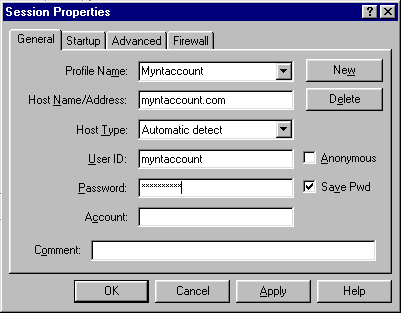
Each time you run WS_FTP the Session Profile window will be displayed. A profile
contains the information needed to connect to your website. Creating a profile now will
eliminate the need for you to configure the software each time you wish to connect to the
web server via FTP. To create a profile, click the "New" button and enter a
generic profile name at the top of the Session Profile window, such as "My
Website." Next, enter your Host Name/Address (yourdomain.com), User ID (yourdomain),
and Password for your website as illustrated in Figure 1A.
Figure 1A
Next you need to click "OK" to continue. This will connect you to the
webserver, where you will connect directly to the root ("home") directory of
your account. WS_FTP will display a split screen where files on the left-hand side are
within your own computer. You will see several folders on the right-hand side such as
_private, _vti_log (Frontpage extensions) cgi-bin, db (for
database files) , chat (if chat room is installed optional ), examples
(examples of ASP scripts ), images, Merchant (if you have Miva
Merchant shopping cart installed) and stats (Webtrends website statistics). you
will also see a file named Default.htm which is the home page of your web site.
These are landmarks suggesting a successful connection to your website, as illustrated in Figure
1B.
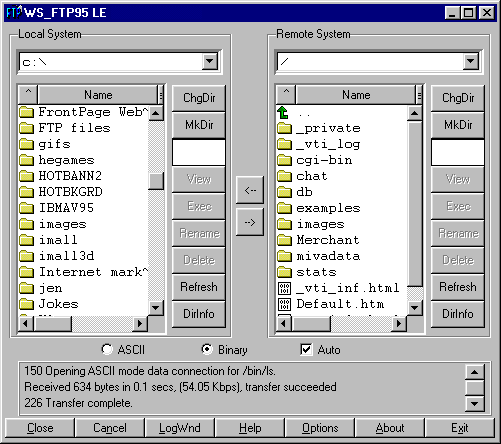
Figure 1B
This is where all your files will be uploaded or downloaded, and/or you will create subdirectories. To make your home page load automatically, name the HTML document "default.htm" in lowercase and upload it to the directory of your account. To upload a file or files, simply highlight the file(s) on the left and click the right arrow button (->) in the center of the window. Be sure to upload HTML documents and scripts in ASCII mode and images in Binary mode. To transfer a file to a subdirectory, double-click the appropriate subdirectory to open it before transferring the desired file(s). To create a new directory, click on the MkDir button when you are inside the root directory or subdirectory.
As soon as a file is uploaded to the web server, it is available for all to see. If, after uploading a file, you are still unable to see the updated file via Netscape, try hitting the "Refresh" or "Reload" button. If that fails, you need to clear both disk and browser cache. This function can be found by selecting Options>Network Preferences in Netscape. Remember that you must first be connected to the Internet through your local Internet service provider in order to connect to the web server.
If chat is installed you will need to update the chat.htm file. You will be prompted on your first access to the chat page with instuctions. If Miva Merchant is installed you should download their manual from http://www.miva.com/ . It comes with an easy -to-use web based control panel so you may easily manage your storefronts.
The following information is contained within your account activation notice and is needed to connect to your web site via FTP:
USERID
PASSWORD
FTP HOSTNAME
The hostname tells your FTP software to connect to the web server upon which your web site resides.
Each time you run Fetch, the New Connection... window will be displayed. A profile
contains the information needed to connect to your web site. Creating a profile now will
eliminate the need for you to configure the software each time you wish to connect to the
web server via FTP. To create a new profile, select "New Connection..." from the
File menu. Next, enter the Host (yourdomain.com), User ID (yourdomain), and password for
your web site as illustrated in Figure 2A.
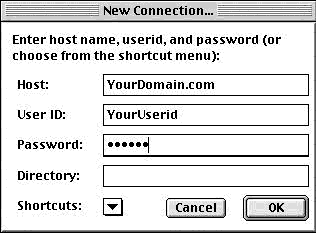
Figure 2A
Don't worry about the Directory option right now. When you have your Host, User ID, and Password entered, click on the OK button.
The next window which will pop up will look virtually the same as Figure 2B,
except that yourdomain will be in the popup window.
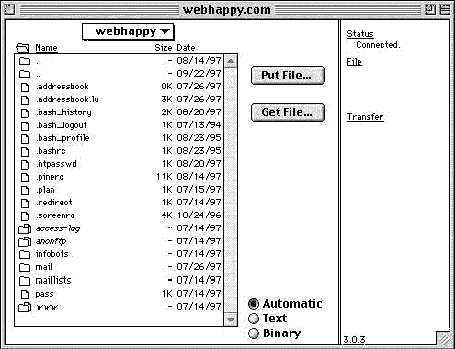
Figure 2B
Return To Top
Bookmarking the Connection
You should take the time, now that you have established your connection, to make it
easier for you to get here next time. Under the Customize menu, select New Shortcut. A
window will pop up called Bookmark Editor, as shown in Figure 2C. It will already
have your name, Host, and User ID filled in. Under Type, choose File from the popup menu.
If you would like Fetch to remember your password so you won't have to type it in each
time, type in your password in the Password field. Now, under the same Customize menu,
choose Preferences, and under the General tab, make sure the connection you just entered
is selected as the default shortcut. Next time you open up Fetch, your shortcut will be
opened automatically and all you'll have to do is click the OK button!
-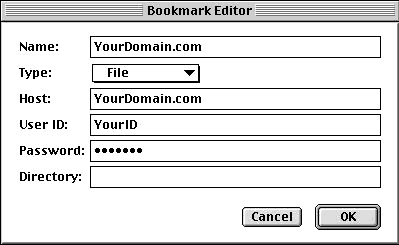
Figure 2C
Return To Top
How to Transfer Files
Refer again to Figure 2B. This is where all your files will be uploaded or
downloaded, and/or you will create subdirectories. To make your home page load
automatically, name the HTML document "default.htm" in lowercase and upload it
to the directory of your account. To upload a file or files, simply drag them from your
hard drive onto the Fetch window when you are in the appropriate directory or
subdirectory. Be sure to upload HTML documents and scripts in Text mode and images in
BINARY mode. Or to make life easier, click on the Automatic button as shown in Figure
2B, and Fetch will decide the proper format. To transfer a file to a subdirectory,
double-click the appropriate subdirectory to open it before transferring the desired
file(s).
To insure that the Automatic selection works properly, make sure the selections under
the Upload tab in the Preferences window looks the same as Figure 2D below.
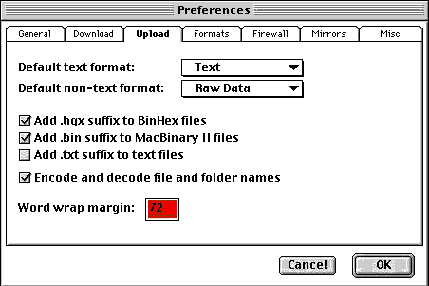
Figure 2D
Return To Top
As soon as a file is uploaded to the web server, it is available for all to see. If,
after uploading a file, you are still unable to see the updated file via Netscape, you
need to hit the Reload button in the Netscape button bar. Remember that you must first be
connected to the Internet through your local Internet service provider in order to connect
to the web server.
A good site for additional FTP programs is : http://www.tucows.com/
How do I create email aliases, and how do I redirect them?
1. Go to http://www.yourdomain.com:8383 and login.
2. Click on host administration and create your standard aliases.
3. To redirect mail go to:: Change User Information for the email account you
want forwarded then go look for the the preference "forwarding:. Place the email
address you want your email redirected to in the text field. Return
To Top
How do I create email accounts (POP's), and how do I redirect them?
1. Go to http://www.yourdomain.com:8383 and login.
2. Click on host administration and create your new accounts.
3.To redirect mail go to:: Change User Information for the email account you
want forwarded then go look for the the preference "forwarding:. Place the email
address you want your email redirected to in the text field. Return
To Top
How do I create and maintain my Imail mailing list?
1. Go to http://www.yourdomain.com:8383 and login.
2. Click on List Administration. Create a name and password for your list. This is also
where you you will set all the parameters for your list. For instance, who can post,
create a digest, create a moderated list and the messages to be sent to all subscribers.
We will provide a more detailed explanation in our manual. For now go to http://www.ipswitch.com/ to view their Imail Server
5.0 manual. Return To Top
Real Audio is a real time audio transmission/player system. A digital audio stream is transmitted from the server over the Internet to the destination and played immediately, rather than being stored to disk first and then played.
Each audio clip requires two files: a metafile with extension .ram, and the digital
audio clip itself, with extension .ra.
The .ram file holds one or more lines of ASCII text, each of which references the .ra file
to be played when the .ram file is accessed by the browser.
Entries in .ram files have the form:
pnm://machine.propagation.net/your-user-name/name-of-clip.ra
Place your .ram and .ra files in the www subdirectory under your web directory. Real Audio is not turned on by default. Remember that .ram files must be uploaded in ASCII mode while .ra files must be uploaded in BINARY mode. Return To Top
How do I use my Real Audio with my NT account?
Please contact technical support to have access granted to the Real Server. You will then be able to upload your files and have them served from this server. The correct call to your Real Audio file should be as follows: Remember that .ram files must be uploaded in ASCII mode while .ra files must be uploaded in BINARY mode. Any one of the following URL calls will stream your real audio file.
The correct procedure for uploading your files is as follows:
How do I use my secure server (SSL) with my new NT account?
Please contact support by submitting a ticket with your domain name to http://ticketmonster.hostingsupport.com/
in order to activate the shared server certificate for your domain. Once a virtual
server has been created under your site the appropriate call is:
ex. https://secure25.securewebsession.com/drchriswilliams.com/creditinfo.htm
How do I change my password?
You will need to contact support by phone or by email from the administrative
contact of your domain name with your full account information. We must verify your
account information in order to protect you. Return To Top
How do I check the web usage statistics on my website?
Go to http://www.yourdomain.com/stats. Return To Top
What is the correct path to PERL (and other preinstalled programs)?
c:\perl\bin\perl.exe Return To Top
How do I create my own "404 not found" error page?
Create a page with the look and feel of your website and post the message the want your viewers to see when they stumble upon a page that is not in your web site. Then please submit a support at http://www.ticketmonster.hostingsupport.com/ and tell us the page you want as your error page and we will take care of it for you. Return To Top
How do I use a database with my web site?
Microsoft Access database can be uploaded and used immediately. You will need to call support or submit a ticket at http://ticketmonster.hostingsupport.com/ to have a DSN setup and to have the permissions changed to have your database updated through the web.
SQL 6.5 is not usable
To use SQL 7.0
Opening a connection to a database is a fairly simple process. first, you creat a connection object, then you open the open the object using either a DSN or specified drivers and path. The latter is called a DSNless connection, as it requires no system DSN to be set in the server's ODBC applet in the Control Panel. Return To Top
With DSN and no User ID/Password :
<%
set conn = Server.CreateObject("ADODB.Connection")
conn.open "DSNname"
%>
With DSN and User ID/Password :
<%
set conn = Server.CreateObject("ADODB.Connection")
conn.open "DSNname","username","password"
%>
With DSN
<%
set conn = Server.CreateObject("ADODB.Connection")
conn.open"DSN=MyDSN;UID=user;PWD=password;DATABASE=databasename"
%>
SQL Server: DSNLess
<%
Set conn = Server.CreateObject("ADODB.Connection")
DSNtemp="DRIVER={SQLServer};SERVER=ServerName;UID=USER;PWD=password;DATABASE=databasename"
conn.open DSNtemp
%>
Publishing a web
After you have built your html documents and are ready to upload them to our server:
Opening from the web:
Troubleshooting Common Problems with Frontpage
Getting error - "Root Web Busy"
FTP to your site and remove the "service.lck" file in /vti_pvt. This
usually happens when an FP session is interrupted before completion. Return
To Top
Server timing out when publishing large sites.
This difficulty arises when the uploading link times out in the process of
copying the web to our server. The only suggestion Microsoft has offered so far is
to break the main web into a group of sub webs on your PC, then upload these
individually. If this problem persists for you, please contact support. Return To Top
Getting Error - "Front Page Extensions not Installed"
We often see this error being reported even when the extensions have been
installed. If you get this error, please contact support and we'll make sure the
extensions are installed and repair them if necessary.
NOTE: The extensions are easily corrupted. Please use only FP Explorer to
update your web site on the server, not FTP. Return To Top
I published but my web's not there!
This will happen when the "Destination Web Name" is filled in when
publishing to our server.
This box should be left blank. If you put any other name in this box it will create
a subdirectory off of your root web and copy all of your files into it. Your site
will exist under a subdirectory instead of at the top level where it should be. Return To Top
My counter, bbs, guestbook, etc. isn't working.
These problems are generally due to incorrect permissions on either the
directory, file (s) or cgi script(s) that are associated with them. Please don't
change the permissions of your files or directories unless you have a specific reason for
doing so and you know what effect it will have on your site. Return To Top
My forms won't work through the Secure Server.
The call to a cgi script using the Secure Server must not be within a webbot. Use a
normal cgi call in your html script for Secure Server calls. Frontpage automatically
inserts webbots for certain functions. ALWAYS check you html code before publishing if you
are not sure if one is accidentally installed. Return To Top
FP starts the Web Publishing Wizard when I try to publish.
Cancel the operation and contact support to have the FP extensions installed/repaired. Return To Top
Why is my page renamed on the server when I publish?
The "Default Document" of your web is automatically renamed by the
server to what is required by the configuration of the server. For example, if
you've named the main page "index.html", it may be renamed
"default.html". Just check the links to your main page to make sure they
refer to it the same way. Return To Top
NOTE: If you are using FrontPage, you should NEVER use regular FTP to upload your
files. This can damage the extensions. Stick with one or the other all the time. Return To Top
Send a ticket to http://ticketmonster.hostingsupport.com/ with your request and we will get back to you shortly. If it is urgent feel free to use our toll free number.
| Contact the webmaster with any questions or concerns. |